The manual
Every control, panel, dialog and key in ANSI Paint, in the order you meet them. Read it from the top if the editor is new to you. Jump to a section if it isn't.
- Getting started
- The screen
- The tools
- Selections
- Text and big fonts
- Colors
- Characters
- SAUCE and the document
- Files and saving
- Image to ANSI
- Drawing together
- Movies
- The gallery
- Your account
- Keys
- Limits
- When something goes wrong
- ANSI art in short
ANSI Paint 1.5.0 Beta (what changed). The editor is complete and in daily use. What you find that this page doesn't explain, or that doesn't behave as it says, goes to Contact.
Getting started
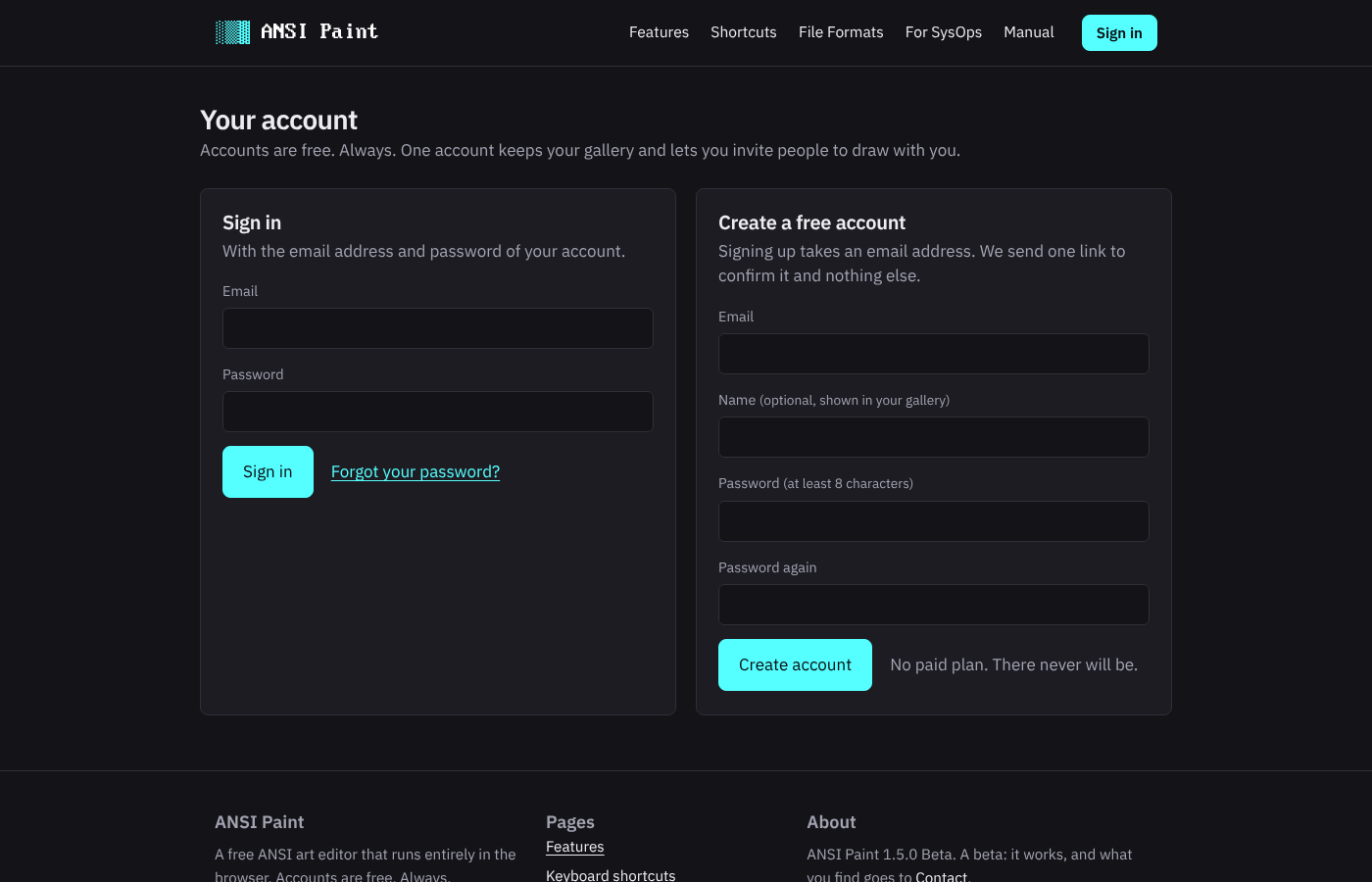
An account
Everything in ANSI Paint sits behind a free account. There is no paid plan and there never will be. Sign up with an email address and a password of eight characters or more. A name is optional; it shows in your gallery and to the people you draw with. One mail arrives with a link that confirms the address. The link works for 48 hours. If it never came, the sign-in page can send it again while it is live; once it has expired, sign up again with the same address and a new link comes. The link opens the account with the password typed when the address first signed up; if that was not you, Forgot your password fixes it.
Sign in with the address and the password. If the password is gone, the link under the form sends a reset mail whose link lives for an hour.
Your first piece
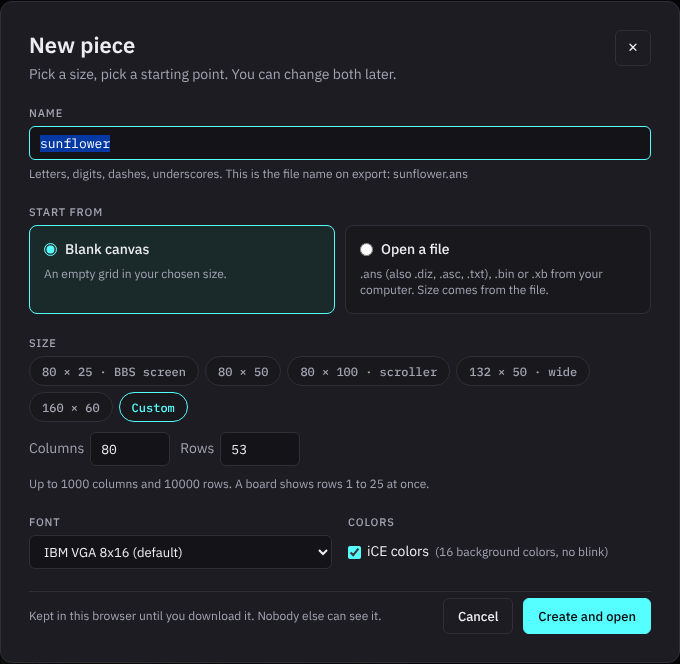
After sign-in you land in your gallery, which is empty. Start painting opens the editor with the New piece dialog in front of it. Give the piece a name, pick a size, and press Create and open. The 80 by 25 preset is one BBS screen, which is where most pieces begin. Everything the dialog asks is explained under Files and saving.
The editor at a glance
The piece sits in the middle. Above it are the top bar, which holds the files and the saving, and the toolbar, which holds the view and the document's settings. The tools run down the left. The right panel holds the colors, the characters, the SAUCE record and the document's facts. Under the canvas sit the selection bar and the status bar. The Movie button at the end of the selection bar brings up the timeline, for an ANSI movie.
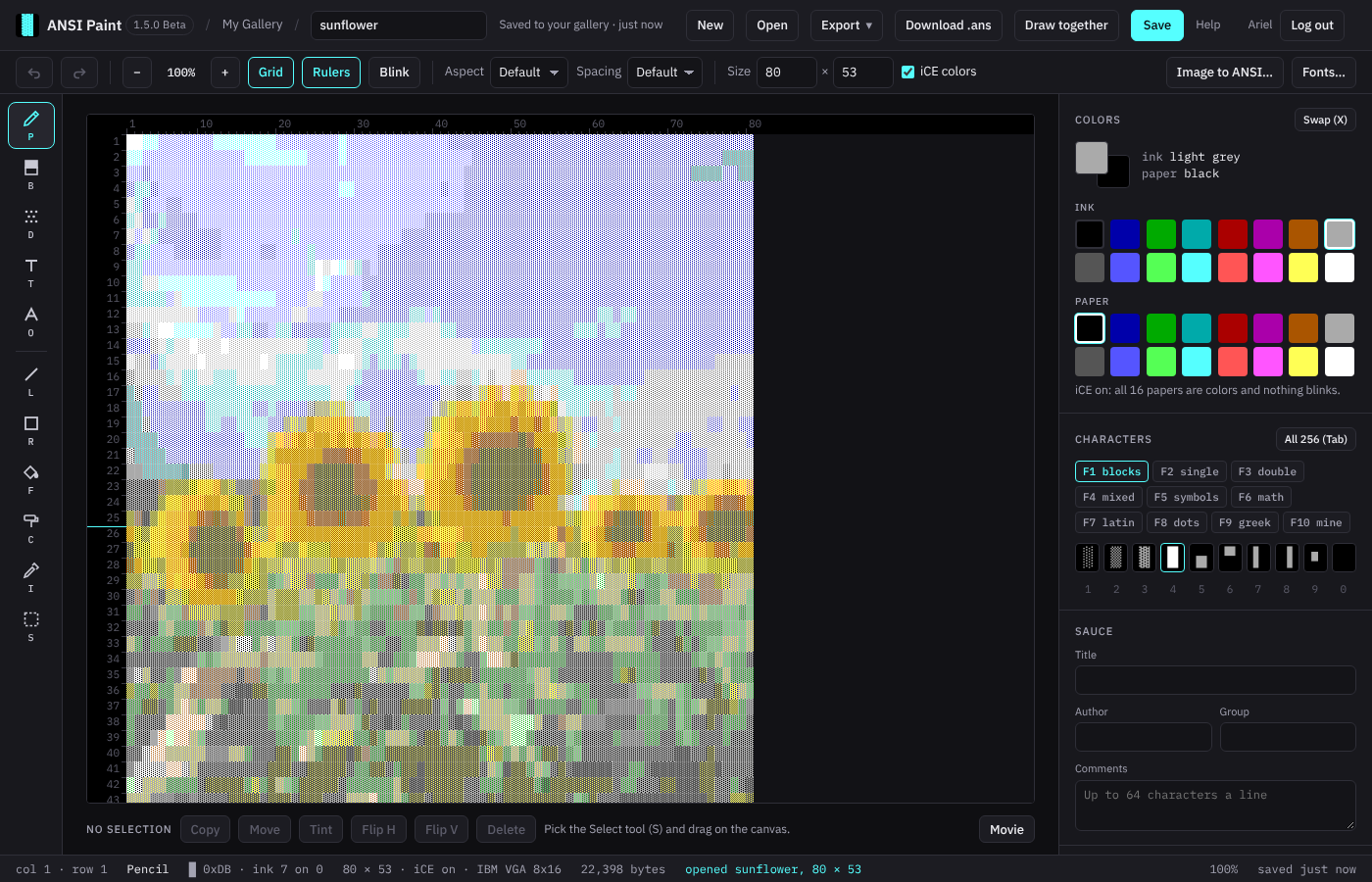
Draw with the mouse. The left button paints; the right button is the eyedropper on most tools. Every tool has a one-letter key, and the keys work whenever no text field has the focus. If the keys seem dead, click the canvas once.
The screen
The top bar

- ANSI Paint
- The site's front page. The chip next to it is the version.
- My Gallery
- Back to your gallery. A small piece that is already in the gallery saves as the page goes; a bigger one (over about 48 KB as a .ans) asks before the page goes, and staying a moment lets it save. A piece that was never saved stays behind as a draft in this browser and comes back on your next visit.
- The name
- The piece's name, which is also its file name on export. Lowercase letters, digits, dashes and underscores, up to 32 of them; anything else you type becomes an underscore. The name can be changed at any time.
- The saved line
- Where the piece stands: saved to your gallery and how long ago, a draft in this browser, or not saved yet. In a room it says who you're drawing with.
- Live
- Appears once a piece is being drawn together. It counts the people in the room and shows a dot in each person's color. Click it for the Draw together panel.
- New
- The New piece dialog. If the piece has edits that were never saved, New asks first.
- Open
- A file from your computer: .ans (also .diz, .asc and .txt), .bin or .xb. Ctrl+O does the same, and so does dropping the file onto the canvas.
- Export
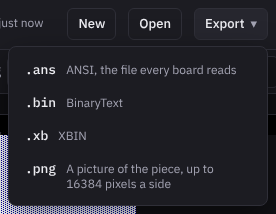
- A menu: .ans, .bin, .xb or .png, and for a movie the .gif as well. See Export.
- Download .ans
- The .ans file in one click, with its SAUCE record.
- Draw together
- The invitations panel. It shows for a piece that is in your gallery; once the room is on, the Live chip takes its place. A movie has no such button: it's drawn alone.
- Save
- Saves to your gallery. Ctrl+S does the same.
- Your name, Log out
- Your name opens the account page. Log out signs you out of this browser; the piece is saved first when it is in the gallery, and a save already going up is waited for, which the status bar says.
The toolbar

- Undo, Redo
- One hundred steps, one step per stroke, fill, paste or resize. Ctrl+Z undoes; Ctrl+Y or Ctrl+Shift+Z redoes.
- Zoom
- 50, 100, 200 or 300 percent. The buttons step through them. Ctrl and the mouse wheel zoom around the pointer (Cmd on a Mac), Ctrl++ and Ctrl+- step, and Ctrl+0 goes back to 100.
- Grid
- A faint line between the cells.
- Rulers
- Column numbers across the top and row numbers down the left, with a mark after row 25: the bottom of one BBS screen.
- Blink
- Animates the cells that blink on a board. Off, which is the default, they hold still so you can work on them.
- Aspect
- How the piece is shown and which flag the file carries. Square shows the pixels as they are. CRT 4:3 stretches the rows the way a 640 by 400 text screen filled a 4:3 monitor. Default shows square pixels and leaves the flag unset, which is what most files carry.
- Spacing
- VGA text mode drew every character 9 pixels wide, with a blank ninth column, and some boards still show art that way. 9 px shows that column and sets the flag; 8 px shows the characters as drawn and sets the other flag; Default shows 8 and leaves the flag unset.
- Size
- Columns by rows, 1 to 1000 by 1 to 10000. Type a new number and the canvas resizes at once. Growing it adds blank cells; shrinking it cuts cells off, and undo brings them back. A movie keeps one size, so the fields rest while a piece has more than one frame.
- iCE colors
- On, all 16 colors can be paper and nothing blinks. Off, only the eight dark colors are paper, and picking a bright paper makes the cell blink instead. The flag goes into the file's SAUCE record so a board knows which rule to apply. Most new pieces use iCE.
- Image to ANSI
- The converter: see Image to ANSI.
- Fonts
- The library of big-letter fonts for the Big font tool: see The font library.
The canvas
The piece is drawn at 8 by 16 pixels a cell, the size of the IBM VGA font, times the zoom. Past its right and bottom edges the stage is a darker shade, so the edge reads. The wheel scrolls; the scrollbars work too. The cell under the pointer is outlined for the tools that paint one cell at a time, and the status bar names its column and row.
A board shows rows 1 to 25 at once. A piece taller than that scrolls on the board the way it scrolls here, which is why the row ruler marks row 25.
The right panel
Four sections, each explained in its own chapter: Colors, Characters, SAUCE and the Document facts. On a window narrower than 1100 pixels the panel drops under the canvas.
The status bar

From left to right: the column and row under the pointer; the tool; the brush, which is the character the pencil paints with its byte and its ink and paper numbers; the document's size, with its color rule and its font, and for a movie whose timeline is hidden the frame in front; the size of the .ans as it stands; a message slot for what just happened (a file opened, an export, a warning), which clears after a few seconds; the zoom; and the save state.
The tools
The rail on the left. Click a tool or press its letter. The letter under each icon is the key. The current brush, which is the character and the two colors the tools paint with, comes from the right panel.
- Pencil P
- Stamps the brush character in the current ink over the current paper. Drag for a run of them.
- Half-block brush B
- Paints pixels, two to a cell: the upper half and the lower half, each in one of the 16 colors. An 80 by 25 piece is 80 by 50 pixels this way, which is how most scene pieces draw their shapes. The left button paints in the ink; the right button erases the half it touches.
- Shade brush D
- Steps a cell through light shade, medium shade, dark shade and the full block, in the current colors. Each pass over a cell takes it one step further. The right button steps back.
- Text T
- Click where the first letter goes and type. See Text and big fonts.
- Big font O
- Types block letters several rows tall, TheDraw style. A font row appears under the canvas to pick the font. See Text and big fonts.
- Line L
- Drag from one end to the other. The line follows the pointer while you drag and lands when you let go, drawn with the brush character and colors.
- Rectangle R
- Drag across two corners for the outline of a rectangle in the brush character and colors. For a filled box, draw the outline and use Fill inside it, or select the area and Tint it.
- Fill F
- Click a cell and every connected cell that matches it exactly, in character and in both colors, takes the brush character and colors. It is safe on a huge canvas.
- Recolor C
- Paints the current ink and paper onto what is already there. The characters stay. Drag over lettering to change its color without retyping a thing.
- Eyedropper I
- Picks up a cell's character and its two colors, so the brush becomes that cell. The right button does the same on every tool except the two brushes, which use it to erase and to step back.
- Select S
- Drag a rectangle over the piece. The selection bar under the canvas wakes up. See Selections.
Esc in the middle of a drag keeps what is painted so far and drops the shape that was still being drawn. A drag is one undo step however long it is.

Selections
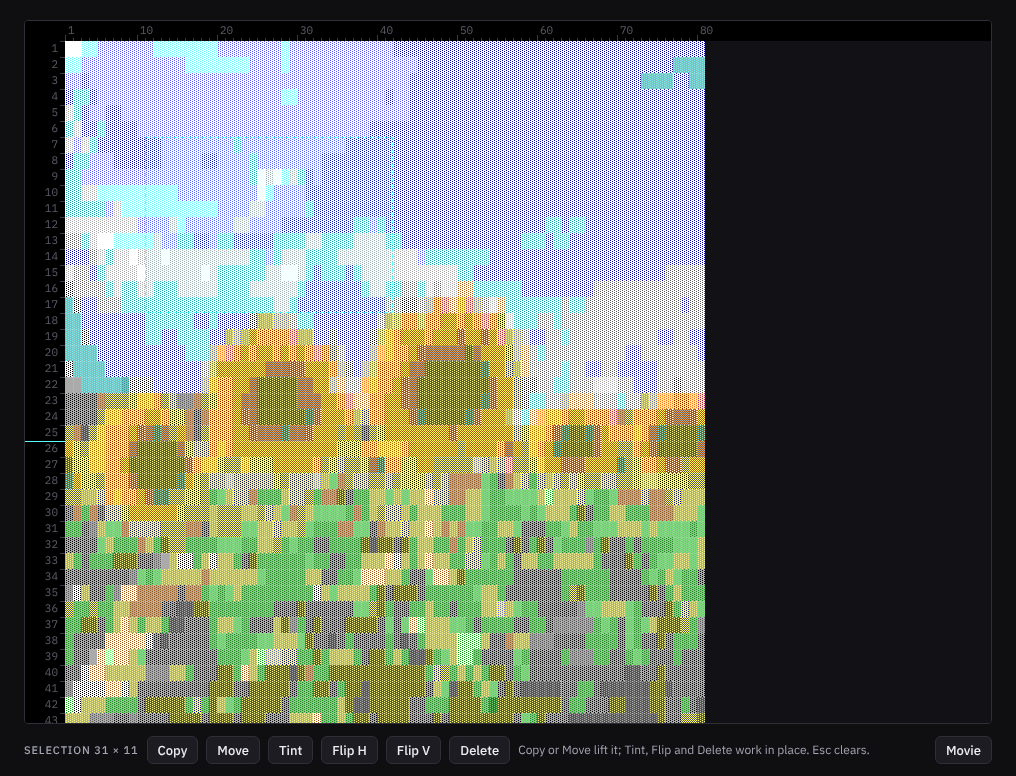
With the Select tool, drag a rectangle. The bar under the canvas shows its size and lights its buttons. Esc clears the selection. The Movie button at the row's right end opens the timeline.

- Copy
- Lifts a copy of the selection. The copy rides the mouse; the original stays.
- Move
- Lifts the selection itself and leaves a blank behind. The lift and the set-down are one undo step.
- Tint
- Paints the current ink and paper over every cell in the selection. The characters stay.
- Flip H, Flip V
- Mirror the selection left to right, or top to bottom, in place. Box-drawing characters turn into their mirrored partners, so a frame still joins up after the flip. Half blocks swap top and bottom on a vertical flip.
- Delete
- Blanks the selection. Del and Backspace do the same.
A lifted block follows the pointer. The arrow keys nudge it by one cell and Shift with an arrow by five. A click or Enter sets it down where it is. Esc or the right button puts a moved block back where it came from and throws a copy away. While a block is lifted, the keyboard belongs to it.
Text and big fonts
The Text tool
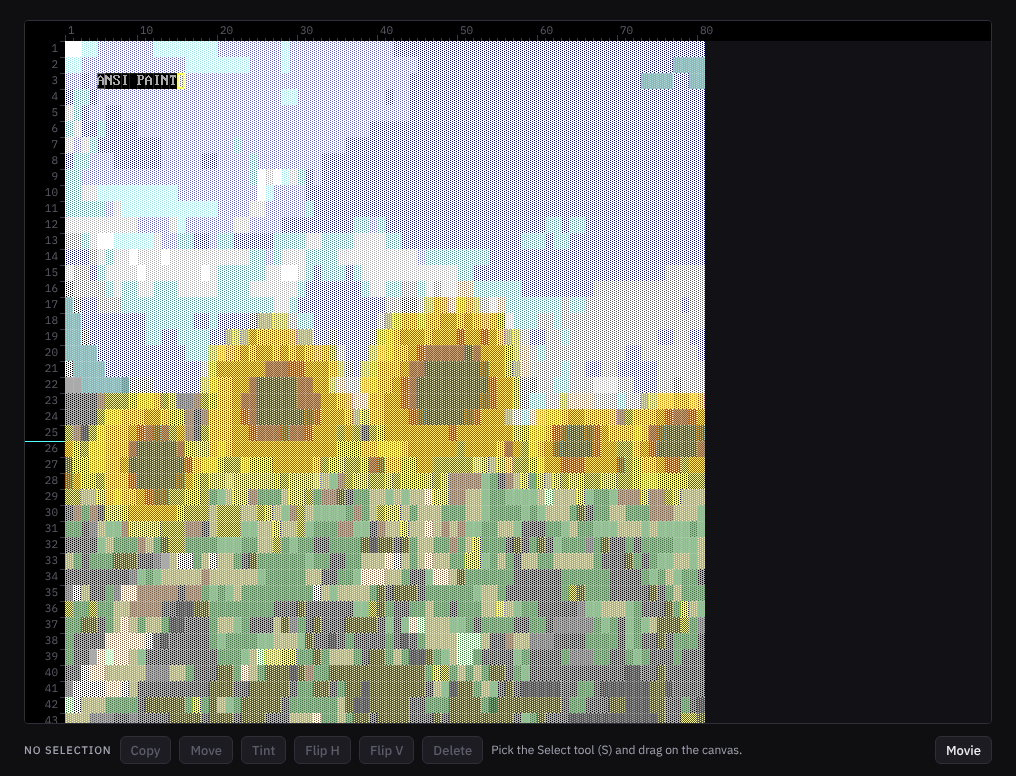
Pick the Text tool, click a cell, and type. Each letter lands in the current ink over the current paper and the caret steps right. Enter goes to the next row, back at the column where you clicked. Backspace steps back and blanks the cell. The arrow keys move the caret, and Esc puts it away. Each letter is its own undo step. A key with no place in the CP437 set is ignored, since no .ans could carry it; the accented letters and symbols that are in the set work.
The Big font tool
Pick the Big font tool and a row appears under the canvas with the font to use. Click the canvas where the first letter's top left corner goes, then type A to Z and 0 to 9. Each letter is stamped as one undo step and the caret moves on by the letter's width plus one column. The space bar skips three columns. A letter that would run past the right edge wraps to a new line, back at the column where you clicked and down by the font's height plus one; Enter does that wrap on demand. Backspace steps the caret back without removing the letter; Ctrl+Z removes it. A letter that would run past the bottom is refused, and the status bar says so. Esc stops.
The font library
Fonts in the toolbar opens the library. Four fonts ship with the editor: Block, Block Wide, Block Shadow and Small. The ones you draw yourself are listed under them, with Edit and Delete, and they live in this browser, so they are not in your account and not on another computer.
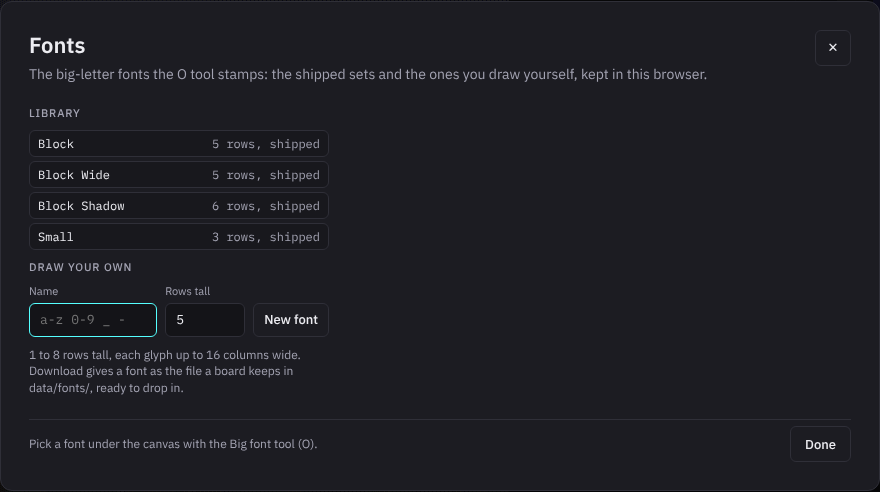
To draw one, give it a name (lowercase letters, digits, underscores and dashes), choose how many rows tall it is, from 1 to 8, and press New font. The editor on the right shows a strip of the 36 glyphs, A to Z and 0 to 9; a drawn glyph reads bright, an empty one dim. Pick a glyph, set its width, up to 16 columns, and paint on the small canvas: the left button puts the current brush character in ink over paper, the right button makes a cell transparent, and Clear glyph empties it. Save font keeps it, and the Big font tool lists it from then on. Download gives a stored font as a .json file, which is the same thing a board keeps in its data/fonts/ folder, so an ATDT sysop can drop it in as it is.
Colors
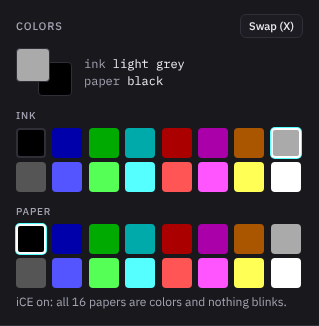
ANSI art has 16 colors, the VGA palette: eight dark ones on the top row of each grid and their bright twins below. Ink is the color of the character; paper is the color behind it. The current pair sits at the top of the panel with its names, and the status bar shows the pair as numbers.
Click a swatch to pick it. X and the Swap button trade ink and paper. [ and ] step the ink through the palette, { and } step the paper.
The line under the paper grid states the rule in force. With iCE colors on, all 16 papers are colors and nothing blinks. With iCE off, a board has only eight papers, and a bright paper means the cell blinks over its dark twin. The editor keeps that rule exactly: pick a bright paper with iCE off and the cell is a blinking cell, which the Blink button in the toolbar animates.
Characters
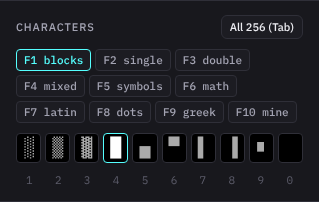
The brush character is what the Pencil, the Line, the Rectangle and Fill paint with. Ten sets sit on F1 to F10, and each set puts ten characters on the keys 1 to 9 and 0. The current character is outlined.
- F1 blocks
- The three shades, the full block, the four half blocks, the small square and a space.
- F2 single
- Single box-drawing lines: the straight bars, with the corners and the tees that join them.
- F3 double
- The same pieces in double lines.
- F4 mixed
- The crosses and the joints where a single line meets a double one.
- F5 symbols
- Hash, dollar, percent, ampersand, at, plus, equals, tilde, caret and the dash.
- F6 math
- Identity, plus or minus, the two inequalities, the integral halves, division, approximately, infinity and phi.
- F7 latin
- Fractions, the inverted marks, the negation signs and the currency signs.
- F8 dots
- Points and rings of growing size, for stars and texture.
- F9 greek
- Alpha to theta, the ten Greek letters the set holds.
- F10 mine
- Yours. Right-click a slot to put the current brush character in it. The set is kept in this browser and starts out as punctuation.
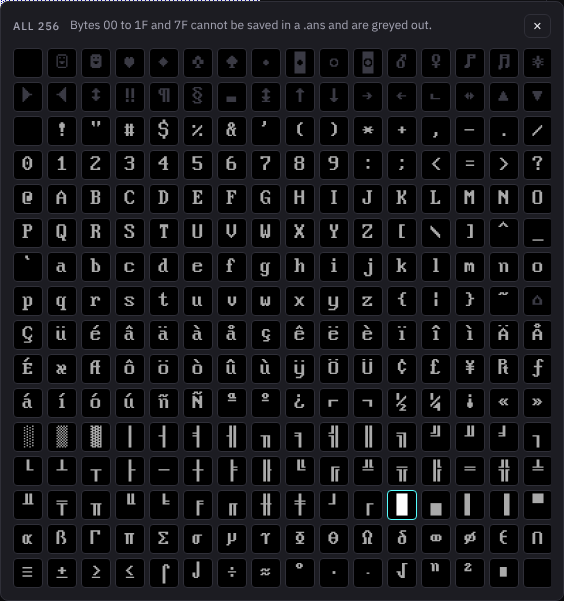
All 256, or Tab, opens the picker with every CP437 character, sixteen a row in byte order. Click one to make it the brush. The first two rows and the last cell of row eight are greyed out: those bytes are control codes, and a .ans cannot carry them as characters. Esc closes the picker. Tab opens it only while nothing else has the keyboard; if a control has the focus, Tab walks the controls as usual.
SAUCE and the document
SAUCE
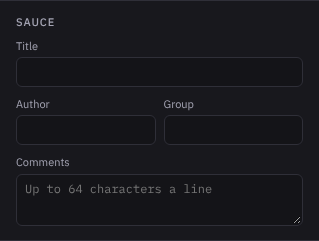
SAUCE is the record at the end of a .ans that says who made it and how to show it. The panel writes it. Title takes up to 35 characters, Author and Group up to 20 each. Comments take up to 255 lines of 64 characters, 254 in a movie, which keeps one line for its speed. The rest of the record, the size, the date, the iCE flag, the spacing and aspect flags and the font name, comes from the document itself, so there is nothing else to fill in. The byte count in the status bar grows with every comment line.
The title also shows on the piece's card in the gallery.
Document
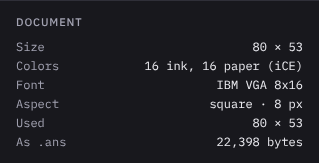
Facts about the piece as it stands. Size is columns by rows. Colors says which rule is on: 16 ink and 8 paper with blink, or 16 of each with iCE. Font and Aspect repeat the toolbar's settings as the file will carry them. Used is the smallest rectangle that holds everything drawn, from the top left corner, which tells you how much of the canvas is blank. As .ans is the size of the file as it would be saved now.
Files and saving
New piece
New in the top bar opens the dialog. Name is the piece's name and its file name on export; the rules are the top bar's. Start from offers a blank canvas in the size you choose, or a file from your computer, in which case the file decides the size and the rest of the dialog dims. The presets are 80 by 25, which is one BBS screen, 80 by 50, 80 by 100 for a scroller, 132 by 50 for a wide screen, and 160 by 60; Custom takes any size from 1 by 1 to 1000 by 10000. Font is IBM VGA 8x16, the one every DOS screen used. iCE colors is on by default. Create and open does what it says. If the piece on the screen has edits that were never saved, the dialog asks before replacing it.
Opening a file
Open in the top bar, Ctrl+O, the New dialog's Open a file, or a file dropped on the canvas. A .ans is read with the same parser a board uses to show it, so what you see is what a caller sees; .diz, .asc and .txt go through the same reader. The file's SAUCE record, when it has one, fills the panel and sets the size and the flags.
A .bin is BinaryText, a raw dump of cells that does not say how wide it is. The editor asks for the width and proposes 160, the width most scene files have, or what the file's SAUCE record suggests. A .xb is XBIN, which says its own size.
Saving
Save, or Ctrl+S, puts the piece in your gallery under its name. From then on it saves itself: every change goes to the gallery within ten seconds. A small piece saves once more as you leave the page; a bigger one (over about 48 KB as a .ans) asks before the page goes, and staying a moment lets it save. The saved line in the top bar and the right end of the status bar say when the last save happened.
The editor never saves over a newer copy. If the gallery's copy changed meanwhile, in another tab or in a room, a banner says so and nothing is written: reload the page for the newer copy, or type another name and Save to keep yours as a new piece. A save the gallery turns down for a reason that will not change on its own, because the piece is over 4 MB, the gallery is full, it holds its 1000 pieces already, or the name is taken, pauses the autosave until the piece changes or you press Save; the status bar says what to do, and the work waits in this browser meanwhile.
The draft in this browser is the safety net. A piece that has never been saved is kept there every ten seconds, so a closed tab loses nothing. A gallery piece is kept there too while the gallery cannot take it: you are signed out, or a save was turned down (the gallery refused it, or its copy changed elsewhere). On your next visit the editor opens with a banner that offers to keep working on the draft or to discard it. There is one draft at a time for each account, and it lives only in this browser. If the browser refuses the draft, which happens with a huge painted piece or in a private window, the saved line says so; Save to the gallery then.
Export and download
- .ans
- ANSI, the file every board and every scene viewer reads: the characters with the fewest escape sequences that reproduce the colors, CRLF at the end of each row, and the SAUCE record. Download .ans in the top bar makes the same file in one click.
- .bin
- BinaryText: two bytes a cell, character and attribute, with a SAUCE record that names the width. The format needs an even width, so a piece with an odd number of columns gets one blank column on the right, and the status bar says so.
- .xb
- XBIN: a header with the size and the flags, then the cells. Readers that know XBIN read the width from the file.
- .png
- A picture of the piece at 8 by 16 pixels a cell, whatever the zoom; with 9 px spacing or the CRT aspect it is drawn as the editor shows it. A side of the picture cannot pass 16384 pixels, so a piece taller than 1024 rows with square pixels, or about 850 with the CRT aspect, is cut there, and the status bar says so.
An export counts as saving: after one, New and Open stop asking about unsaved edits.
A movie's menu holds more. Its .ans is the whole movie and two .gif entries join it, while every other entry holds one frame: see Export under Movies.
The File Formats page describes each format in more words.
Image to ANSI
The converter turns a picture into cells. It runs in your browser, so the picture never leaves your computer; what reaches the server is the piece you save, like any other. Open it with Image to ANSI in the toolbar, with the Image to ANSI button in the gallery, or by dropping a picture on the canvas.
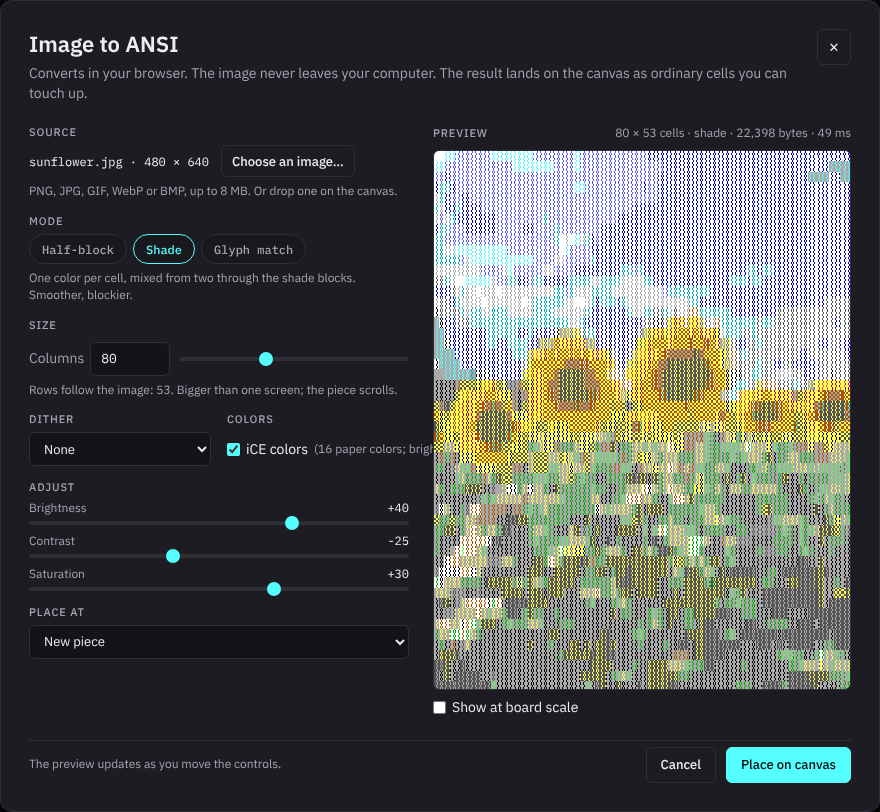
- Source
- PNG, JPG, GIF, WebP or BMP, up to 8 MB. A picture larger than 2048 pixels a side is scaled down first. The file name and its size show once it is read.
- Mode
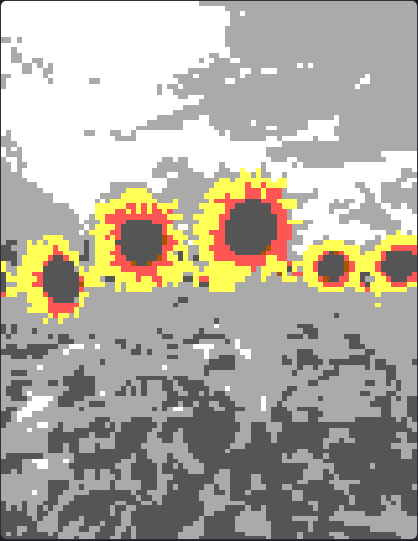
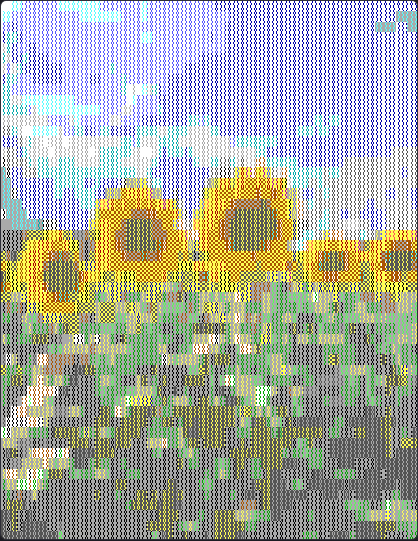
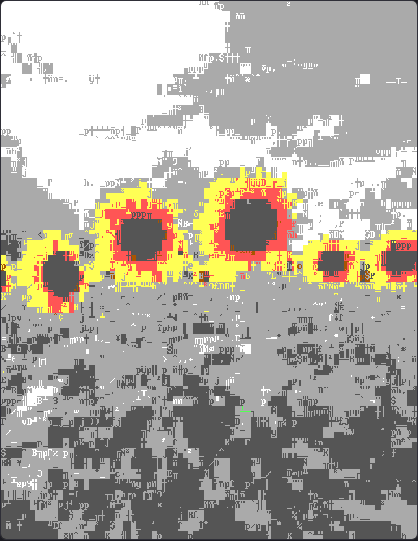
- Half-block paints two square pixels a cell, each in one of the 16 colors: the classic look. Shade is finer in tone: each cell becomes the mix of an ink and a paper through the shade characters and the full block, which gives five levels between any two colors. The third mode, Glyph match, tries every printable character on every cell and keeps the one whose shape, in the two colors that fit it, comes nearest to the pixels under it. It is slow at wide sizes and is capped in width for a big picture; the hint under Size says when.
- Size
- Columns, from 1 to 1000; the slider walks 10 to 200. Rows follow the picture's shape. The hint says whether the result fits one 80 by 25 screen, or how the canvas will grow to hold it. It also warns when the .ans would be over the 4 MB a gallery piece may have. A result stops at 1,000,000 cells, and the hint says when a picture reaches that; above 200,000 cells the preview is a rough bitmap and the byte count an estimate.
- Dither
- None takes the nearest color for every pixel. The other two dither: Floyd-Steinberg spreads each pixel's color error to its neighbors, and Ordered lays a fixed 4 by 4 pattern over the picture. With only 16 colors, dithering turns a smooth sky into a sprinkle of blue, cyan, white and gray; None keeps it one gray. Try all three; the preview is instant.
- iCE colors
- On, every color can be paper. Off, the paper has eight colors and a bright half block over a bright one cannot be drawn, so the converter picks the pair that loses the least.
- Adjust
- The three sliders run from -100 to 100 and apply before the conversion.
- Place at
- Where the cells land: at the cursor, in the top left corner, centered, or as a new piece named after the file. The canvas grows to hold a picture that is larger than it; it never shrinks. On a blank canvas the dialog offers a new piece first.
- Preview
- Updates as you move the controls and dims while a conversion is pending. The line above it gives the size in cells, the mode, the size of the .ans and the time the conversion took. Show at board scale shows the cells at 8 by 16 pixels instead of fitted to the box.
- Place on canvas
- Does it. With iCE colors checked, placing turns iCE on for the piece. The paste and whatever came with it, a resize or the iCE switch, are one undo step, so Ctrl+Z takes the whole picture back out.
The result is ordinary cells. Touch it up with every tool: recolor a patch, fill the background, type a caption over it.
Drawing together
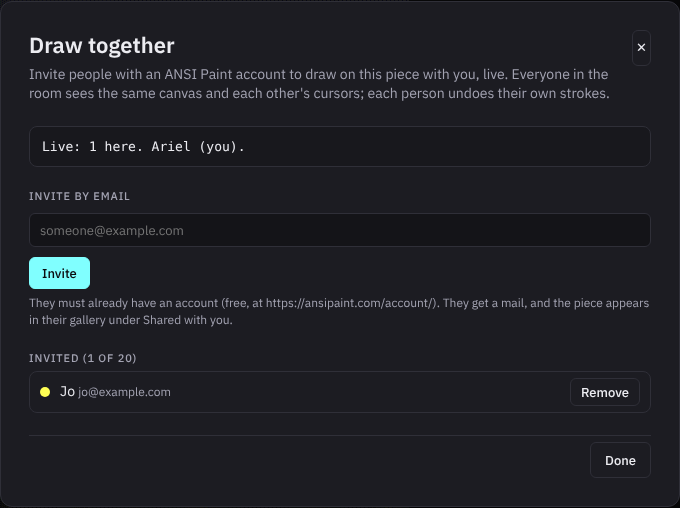
The owner of a piece can invite other account holders to draw on it, live. Everyone in the room sees the same canvas and each other's cursors, with names. Each person undoes their own strokes. The piece stays the owner's: it lives in the owner's gallery, and the invitees find it under Shared with you in theirs.
Inviting
Save the piece first; invitations hang off a gallery piece, and a movie takes none. Then Draw together in the top bar opens the panel. Type an address and press Invite. The person must already have an ANSI Paint account, which is free. They get a mail that says who invited them to what, and the piece appears in their gallery. Up to 20 people can be invited to one piece. Remove takes an invitation back; if that person has the piece open, their editor leaves the room and tells them.
In the room
Once the piece is shared it connects to its room whenever it is open, for the owner and for the invitees. The Live chip in the top bar counts the people in the room and shows a dot in each person's color; click it for the panel. The saved line names who you're drawing with, and the status bar's save state reads live.
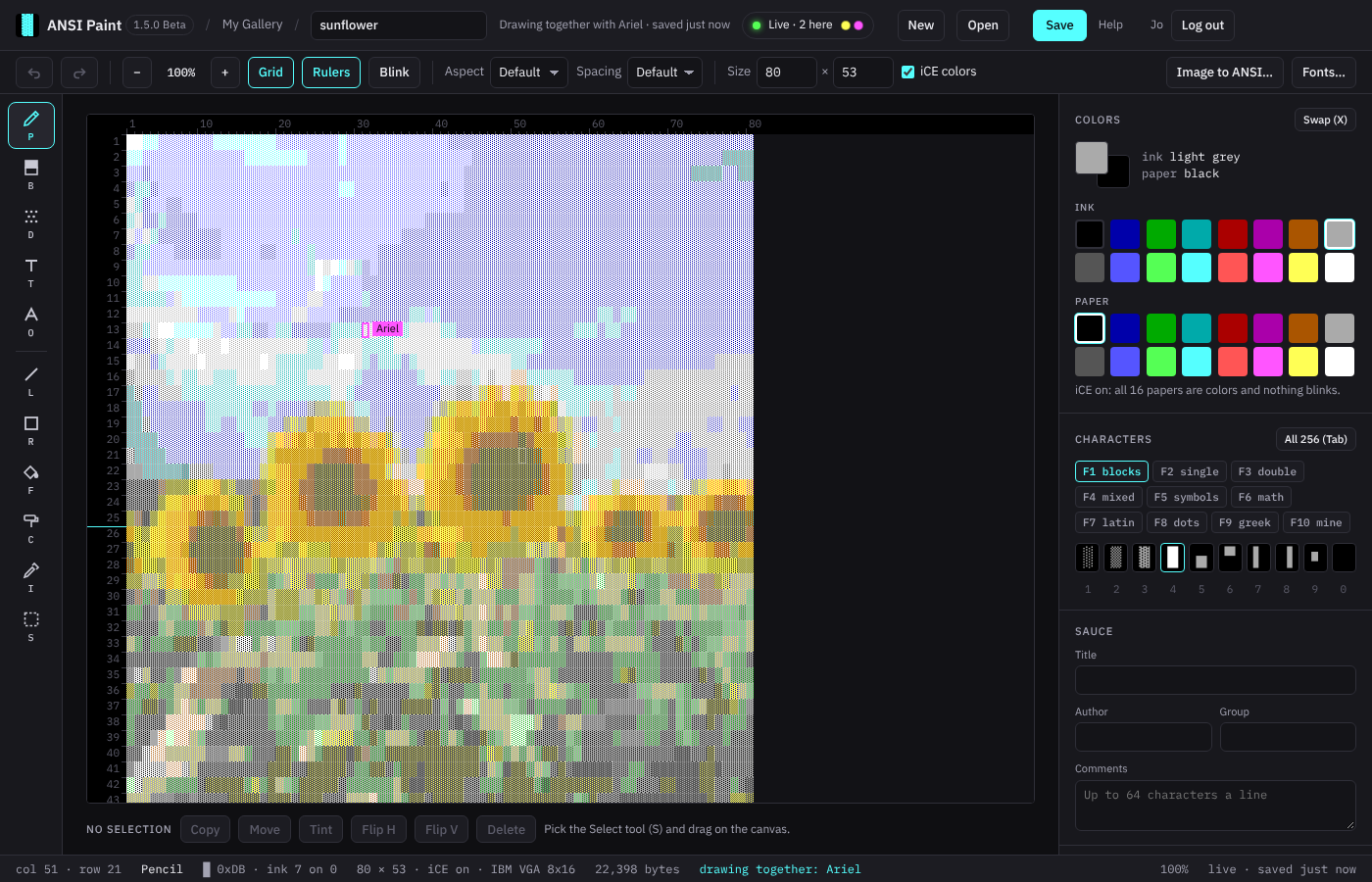
Every stroke, fill, paste and resize goes out as it finishes and lands on everyone's canvas. Each person's cursor shows on the others' canvases with their name. Undo takes back your own last change, whoever drew over it since; redo puts it back. A resize or an iCE change made by one person reaches everyone, and a stroke in progress elsewhere is finished before it applies.
The room saves the piece to the owner's gallery: every ten seconds while something changed, when the last person leaves, and when the server is told to stop. Save in the top bar asks for a save right now. The editor's own autosave is off meanwhile.
An invitee can draw with every tool and change the SAUCE text. Renaming, downloading, exporting and deleting stay with the owner; Download .ans shows for an invitee only while this tab holds work the shared piece will not take, as the way to keep it. Leave, in the panel or on the gallery card, takes the invitee off the list; the owner can invite them again.
New and Open leave the room, since the piece on the screen would no longer be the shared one. So does Image to ANSI when it places the picture as a new piece.
When the connection drops
The chip reads Reconnecting and the editor keeps working. Changes made meanwhile are kept and sent when the room is back, and anything you missed arrives with it. If the room cannot be reached five times in a row, the editor gives it up for this visit, says so, and saves to the gallery on its own again, as it would for a piece that is not shared. If someone was still drawing in the room, the last save wins, theirs or yours. Reload the page to try the room again.
Sixteen people can be in one room at once; the seventeenth is told the room is full, and that editor does not save over the shared piece: download the .ans to keep the work, or reload to join when a seat is free. A room holds a piece of up to 1,000,000 cells, and the Size inputs stop there while you are in one. One account can be in 8 rooms at once, with 3 tabs on any one of them. A fourth tab on one room, or a ninth room, is refused. A piece too big for a room is refused too. In both cases the editor says why and does not save over the shared piece: download the .ans to keep the work, or close a tab (or leave a room) and reload.
Movies
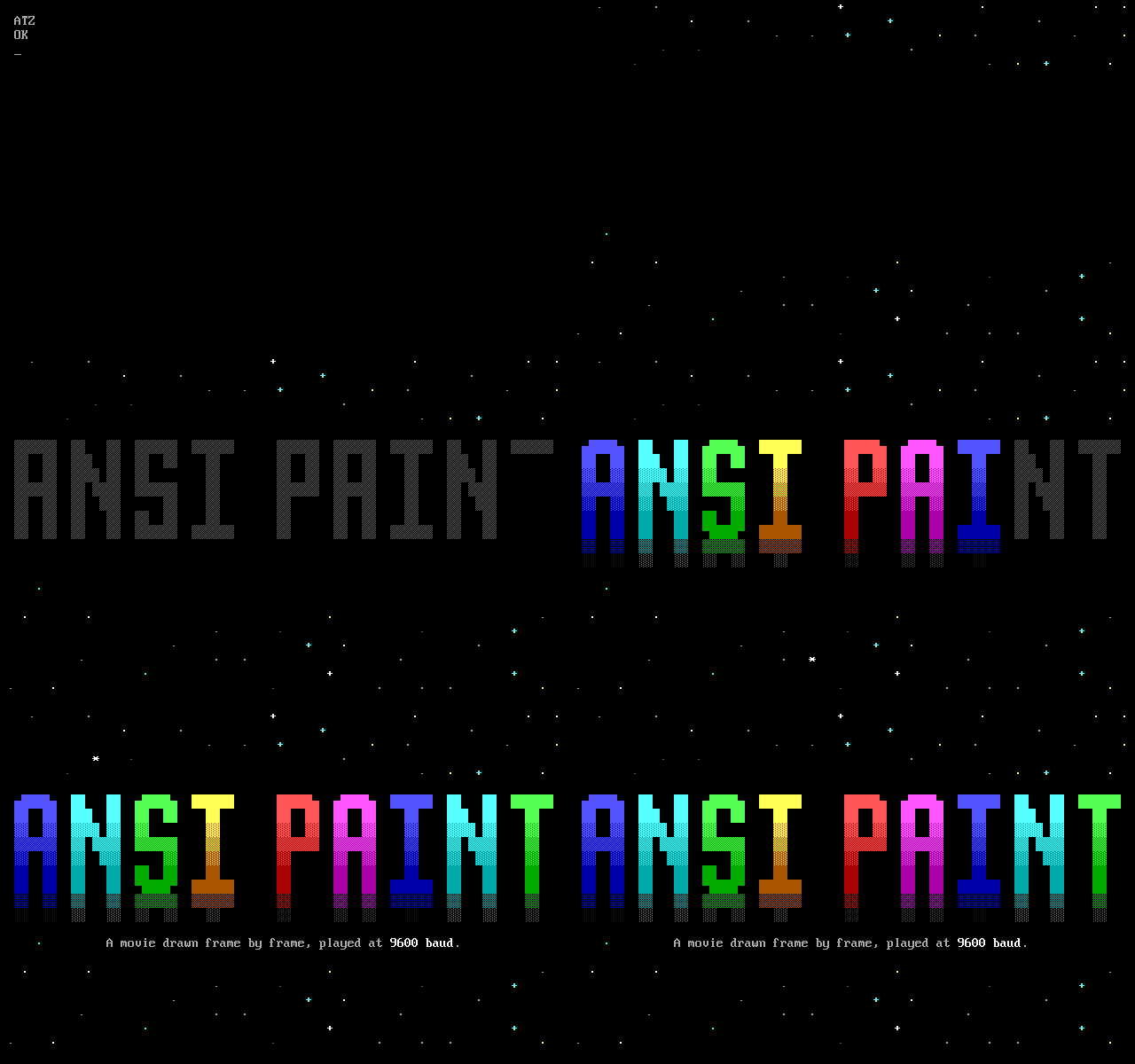
An ANSI movie is an ordinary .ans that keeps moving the cursor and drawing over what is already on the screen, frame after frame. The file holds no clock. A board sends it at the speed of the caller's connection, and that speed is the frame rate.
In TheDraw a movie was a recording of the drawing as it was made. Here it's a flipbook: frames to step through, change, reorder and play, each with a hold in seconds, and one undo for all of them.

The timeline
Movie, at the right end of the selection bar, puts the timeline under the canvas; press it again and the timeline goes. A piece that's already a movie opens with it up. An invitee sees neither.
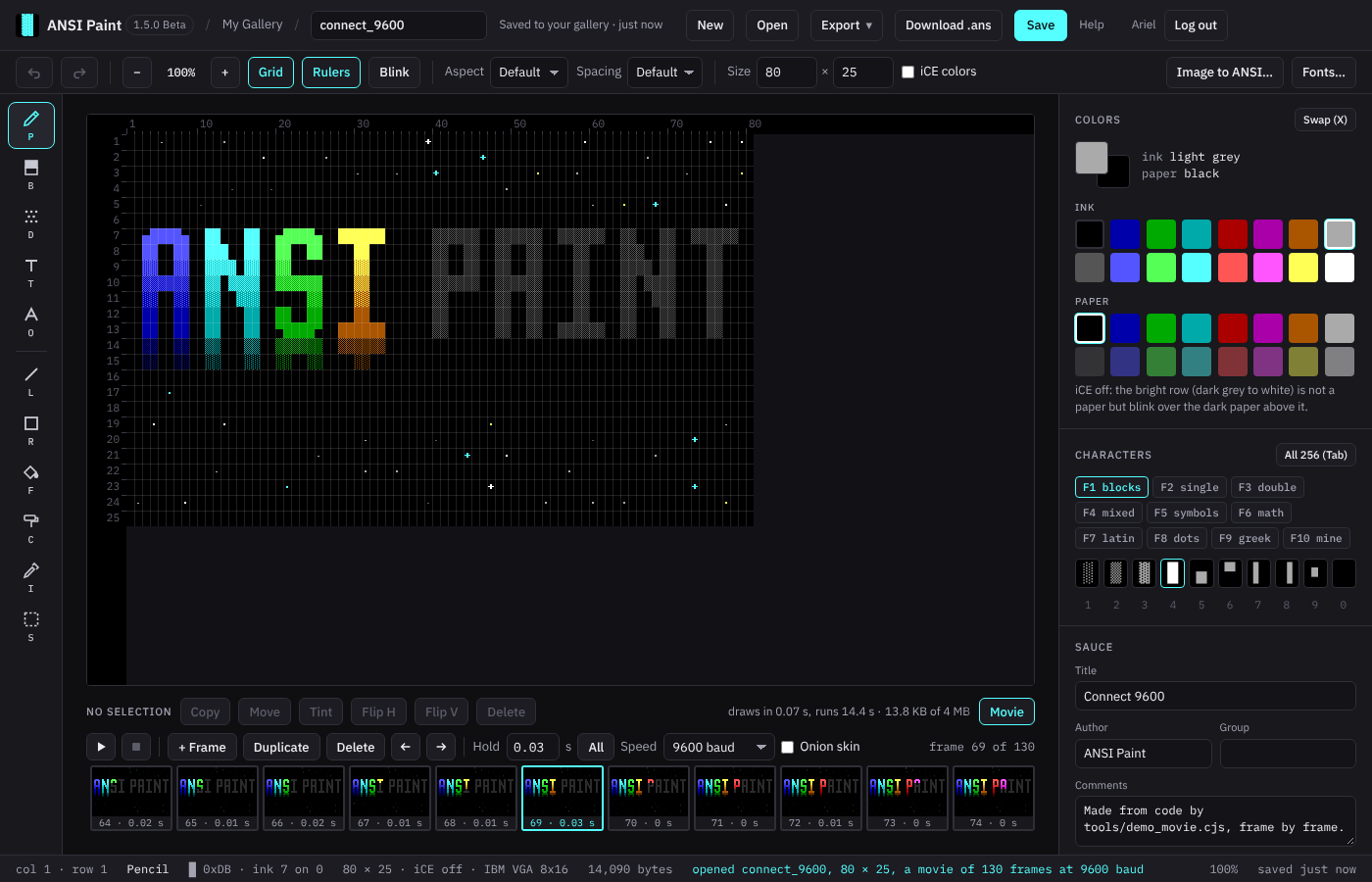
It's a row of controls over a strip of thumbnails, one for every frame, each with its number and its hold under it and the frame in front outlined. Click one and that frame comes to the front; the wheel scrolls the strip.

Frames
- + Frame
- A blank frame after the one in front, which comes to the front itself. The second frame makes a piece a movie, and a movie is one 80 by 25 screen: a smaller canvas grows to that size in the same step, which the status bar reports, and only 80 by 24 is left as it is. Anything larger is refused. Make it smaller in Size, then add the frame.
- Duplicate
- A copy of the frame in front, right after it, with the same hold. Most frames of a movie start this way, as a copy of the one before in which only the thing that moves is changed.
- Delete
- Removes the frame in front. A piece keeps one frame, and with one left it's a still again: the Size fields wake up and it saves as a still.
- The arrows
- Move the frame in front one place left or right. It stays in front.
Each of these is one undo step, and while a piece has more than one frame the Size fields rest, since every frame of a movie has the same size.
Two keys step through the frames: , goes to the one before and . to the one after. PageUp and PageDown do the same in every tool, which matters in the Text tool, where a comma types a comma, and all four are live while the timeline shows or the piece is a movie.
Every tool draws on the frame in front, and a lifted copy rides along: select a figure, press Copy, step to the next frame and set it down. Moves are put back first. The iCE box changes every frame at once, as one step. Image to ANSI places its picture in the frame in front and never grows a movie's canvas; what hangs over the edge is cut, and the dialog says how much.
Onion skin
With the timeline up, the Onion skin box lays the frame before over the canvas at 30 percent, so the next drawing can be placed against the last one; only its cells that aren't blank and differ from the frame in front are shown. It's a view. It rests while the movie plays, and no thumbnail or exported file ever has it.
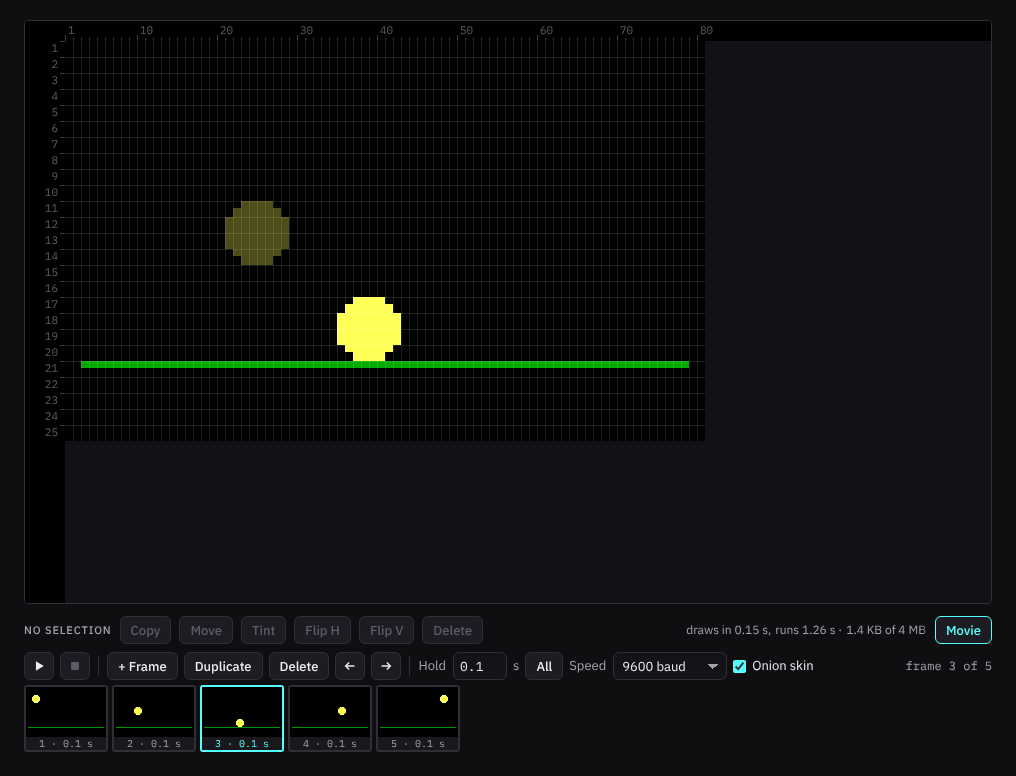
Hold and Speed
- Hold
- How long the frame in front stays up once it's drawn, in seconds from 0 to 60, to the hundredth; a new frame holds a tenth of a second.
- All
- Gives every frame the hold in the field, as one undo step.
- Speed
- The modem speed the movie is made for: 2400, 4800, 9600, 19200, 38400, 57600 or 115200 baud. It starts at 9600. Undo doesn't touch it.
- The row above
- It keeps count:
draws in 0.07 s, runs 14.4 s · 13.8 KB of 4 MB. First come two times: what the frame in front takes to draw, and how long the whole movie runs. Then the file's size against the gallery's limit for one piece, which is the part a narrow window keeps when it has to drop the times.
A speed is needed at all because the file itself has no clock. A frame takes as long to draw as its bytes take to arrive, which at 9600 baud is 960 bytes a second, and a hold is written as bytes that draw nothing, counted for the speed you picked. Played at that speed the movie runs as you timed it. A faster connection runs it faster, holds and all, and with no speed limit the whole file lands at once, so that only the last frame is seen.
Play and Stop
Play runs the movie on the canvas from frame 1, once, at its speed. The editor encodes the movie and plays those very bytes, so what you watch is what the file does on a board at that speed. Ctrl+Enter plays too, and pressed again it stops. Stop and Esc end the movie as well, and the frame that was in front comes back. Meanwhile nothing can be drawn.
The last cell of the screen
On a movie the bottom right cell of the screen stays blank. The editor won't draw there, and says why the first time you try: some terminals, SyncTERM among them, wrap the moment the last column is written, and on the last row that scrolls the screen. No movie survives a scroll. It clears the screen once and then repaints only what changes, so every later frame would sit a row off. A still that has something in that cell loses it when it gets its second frame, in the same undo step.
Undo
One history serves all frames. It's a hundred steps deep, as for a still, and new frames, deleted frames, moves and holds are steps in it like any stroke. Undo a stroke made in another frame and that frame comes to the front, named in the status bar; undo the second frame and the piece is the still it was, in its old size.
Saving
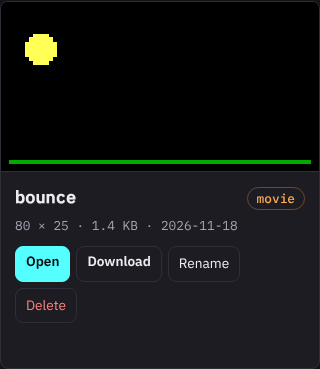
A movie is saved the way a still is (see Files and saving), and what is saved is one .ans that holds every frame with its hold, and the movie's speed. There's no second file. In the gallery its card has a movie chip and shows the first frame that isn't blank.
A movie that was never saved is kept as a draft in this browser, all of it; if it outgrows the browser's storage, the saved line says the draft is behind. Save to the gallery then.
A movie's file is as long as the movie runs: about a tenth of its speed in bytes for every second, holds included. At 9600 baud that's 960 bytes a second, so the gallery's 4 MB for one piece is about seventy minutes. At 115200 baud, six. Past the limit the size in the row above the timeline turns red.
A hold or a speed that would carry the file past 4 MB is refused, and the status bar gives both sizes. A new frame is never refused for its size: when one takes the file past the limit the status bar says so, and Save turns the file down until it's smaller. A movie's autosave can also wait longer than a still's ten seconds: 30 seconds at least once the file is past 256 KB, and after a slow save five times as long as that save took, up to a minute. What you draw in that wait is in this tab until the save goes; leaving saves it or asks first, as for any piece.
Export
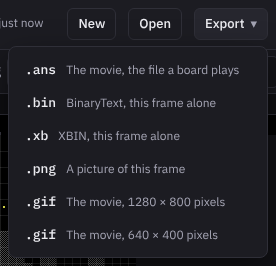
- .ans
- The movie, the file a board plays, with its SAUCE record; Download .ans in the top bar gives the same file, and so does Download on the gallery card.
- .gif, twice
- The movie as an animated GIF that loops: for a full screen one is 1280 by 800 pixels, two to the dot, and the other 640 by 400, pixel for pixel. Those sizes are for characters 8 pixels wide, the default spacing. With 9 px spacing the GIFs are 1440 by 800 and 720 by 400. Both are made from the movie's file, so they show what the file plays, at its speed. Pixels are square. Blinking cells are drawn steady, and frames too short to see fold into the next picture. While the GIF is made the status bar counts the percent and Esc stops it; one that could come to more than 25 MB asks before it starts.
- .bin and .xb
- The frame in front, alone.
- .png
- That frame as a picture.
A frame's file is named for it, as in bounce_frame3.png, and the status bar says it isn't the movie. Only the .ans counts as saving a movie, so after any other export New and Open still ask about unsaved edits.
Opening a movie
A movie made here opens as it was saved, from the gallery or from its file: every frame comes back with its hold, and the movie with its speed.
So does one made elsewhere. If its SAUCE record says ANSiMation, it opens as a movie, unless the record names a screen larger than 80 by 25: then it opens as a still, and the status bar says why. Without that record the editor looks at what the file does, and one that clears its screen and draws again, or keeps going back over what it drew, gets a question.
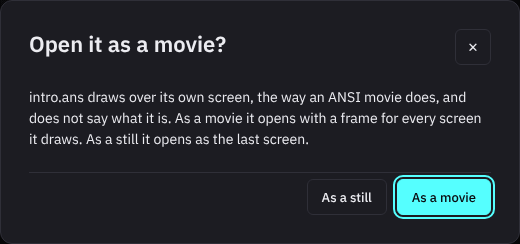
As a still, the file opens as the last screen it draws. A movie made elsewhere names no frames, so the editor cuts them itself: wherever the stream clears the screen or sends the cursor home, and every tenth of a second of stream besides. In a long file those cuts fall further apart, which keeps the movie within its 1000 frames. Holds are then set so the movie keeps the pace it had at 9600 baud.
The result is a likeness. The frames are the editor's and the speed is assumed, 9600 baud. ANSI music is left out, and a recording that scrolls runs longer here than it did; the status bar says by how much.
The question comes only for a file you open by hand, and never for a text file such as a .txt. An ANSI Paint movie that lost its SAUCE record gets it too, and opened as a movie it has its own frames back, with only its speed assumed.
A movie is drawn alone
A movie has no room and takes no invitations, and Draw together leaves the top bar for as long as the piece has more than one frame. It works the other way too. A shared piece can't become a movie, and + Frame on one is refused until you take back the invitations in the Draw together panel and reload the page. Then it's yours alone. Or keep the shared piece as it is: download its .ans and bring it back with Import .ans in the gallery. The copy opens under the shared piece's name, which the gallery holds already: type another name and Save. That copy is a piece of your own.
Putting a movie on a board
A board plays a movie by sending the file untouched, and nothing else is needed. Two things spoil it: a board that rewrites the file, and a caller with no speed set.
On an ATDT BBS board, as ATDT is today, six things matter:
- Where it goes
- Copy the downloaded .ans into the board's art folder,
data/art/. - Not through its editor
- The board's own import and its editor read the file and write a still back. One frame is left.
- Speed
- The board plays art at the caller's speed. That speed starts at the board's Line speed, 9600 baud unless the sysop changed it. A caller can pick another after login, and before login everyone gets the Line speed. Of the editor's speeds the board has 2400 and 9600 only, so a movie made for 19200 runs at half speed there. A caller with no speed limit gets the whole file at once and sees the last frame.
- Keys
- Any key the caller presses skips to the end of the art, as on every screen of the board. The movie jumps to its last frame.
- Size
- The board's limit for art is 256 KB, which is 273 seconds of movie at 9600 baud. It checks the limit where art is imported or edited, and not on a file copied into the art folder.
- Codes
- The board fills in its codes inside art: a percent sign and two capital letters it knows, such as
%BNfor the board's name. What it fills in pushes the cells after it, and a movie can't repair that. Keep those pairs out.
Any other board: put the file where the board sends art untouched, byte for byte, and tell callers the speed the movie was made for. Board software has codes of its own, many of them a pipe or a percent sign with two characters after it. Its manual has the list.
Terminals of 24 lines
A movie of 25 rows needs a terminal of 25 lines. SyncTERM's default window shows 24, because its status line takes one, so for those callers make the movie 80 by 24: set Size before the second frame, and the editor keeps the last cell of row 24 blank.
The limits
One screen of 80 by 25 at the most, a thousand frames, holds of up to 60 seconds, and a file as large as any piece in the gallery: 4 MB.
The gallery
Your gallery holds every piece you saved, visible to you and to the people you invite, and to the site's admin, and to nobody else. There are no public galleries.
- The cards
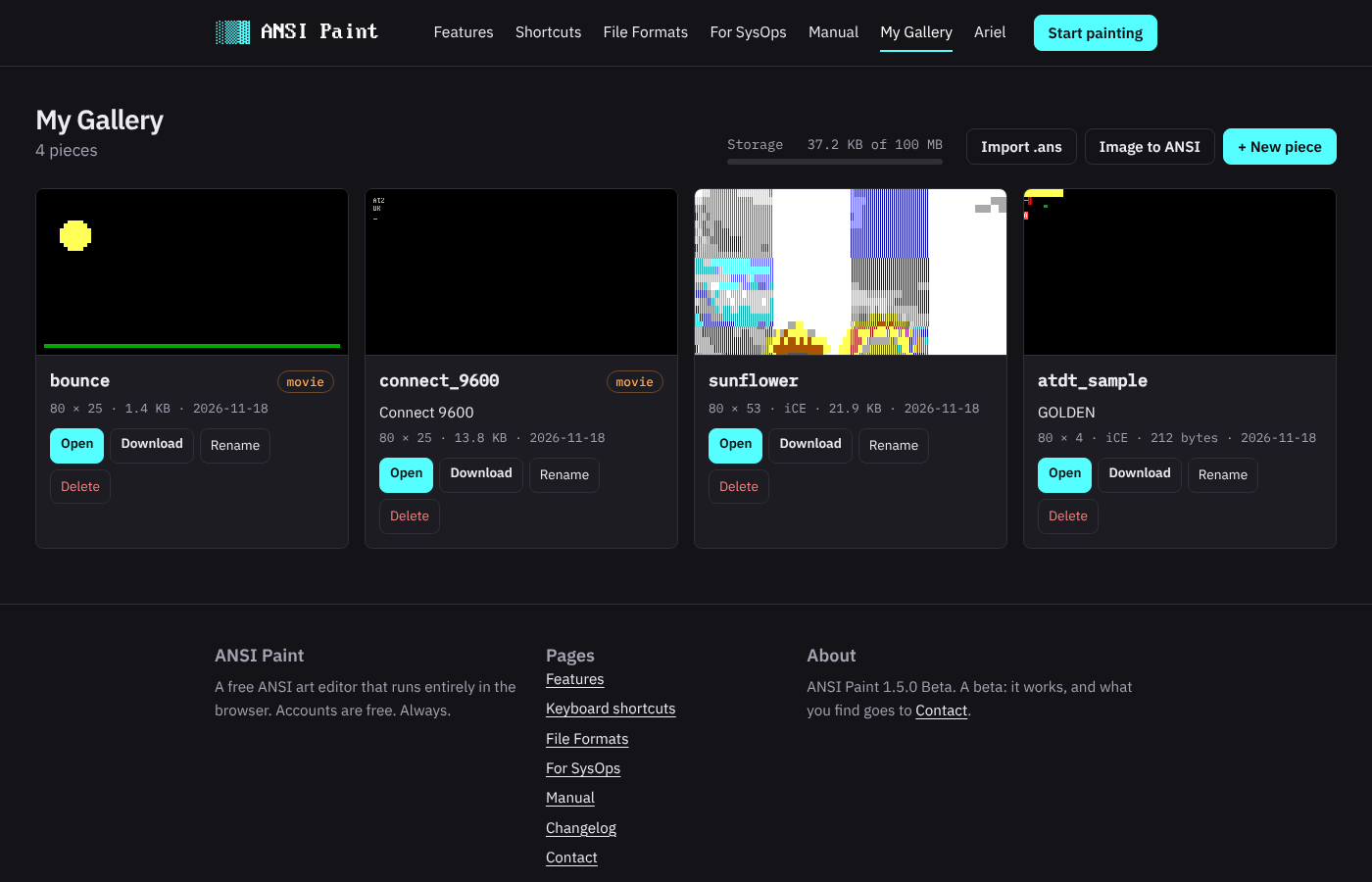
- A preview of the piece, its name, its SAUCE title when it has one, and a line with the size, the color rule, the file size and the date of the last save. Open takes it to the editor. Download gives the .ans. Rename asks for the new name, under the same rules as the editor's name field. Delete asks once and then removes the piece for good. A movie has a movie chip beside its name, and its preview is the first frame that isn't blank.
- Storage
- How much of your 100 MB the pieces take.
- Import .ans
- The editor with the New dialog set to Open a file.
- Image to ANSI
- The editor with the converter open and asking for the picture.
- New piece
- The editor with the New dialog.
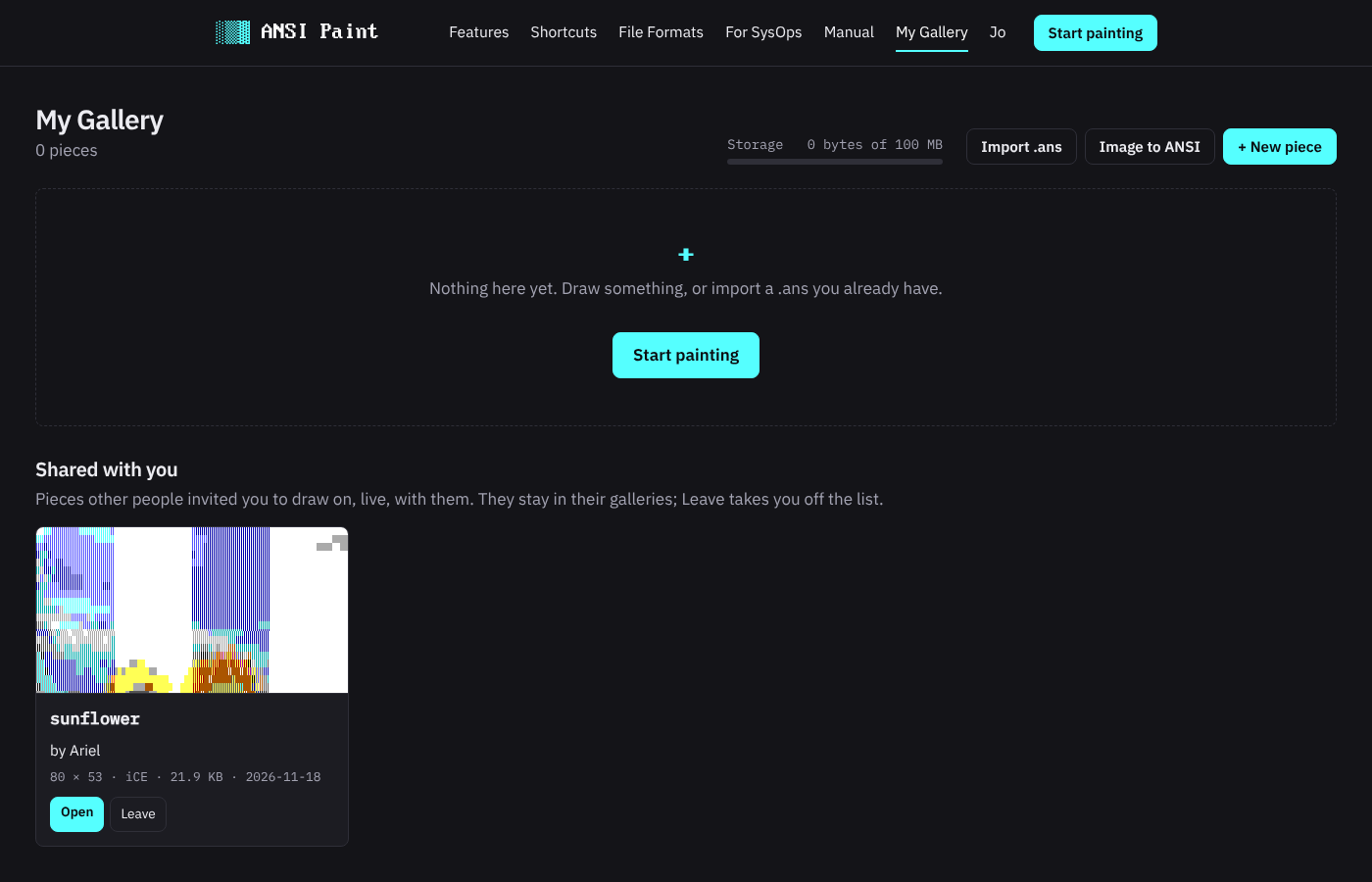
- Shared with you
- The pieces other people invited you to draw on. Open joins the room; Leave takes you off the piece's list. These pieces stay in their owners' galleries and count against their storage, not yours.
Your account
Your name in the site header, or in the editor's top bar, opens the account page.
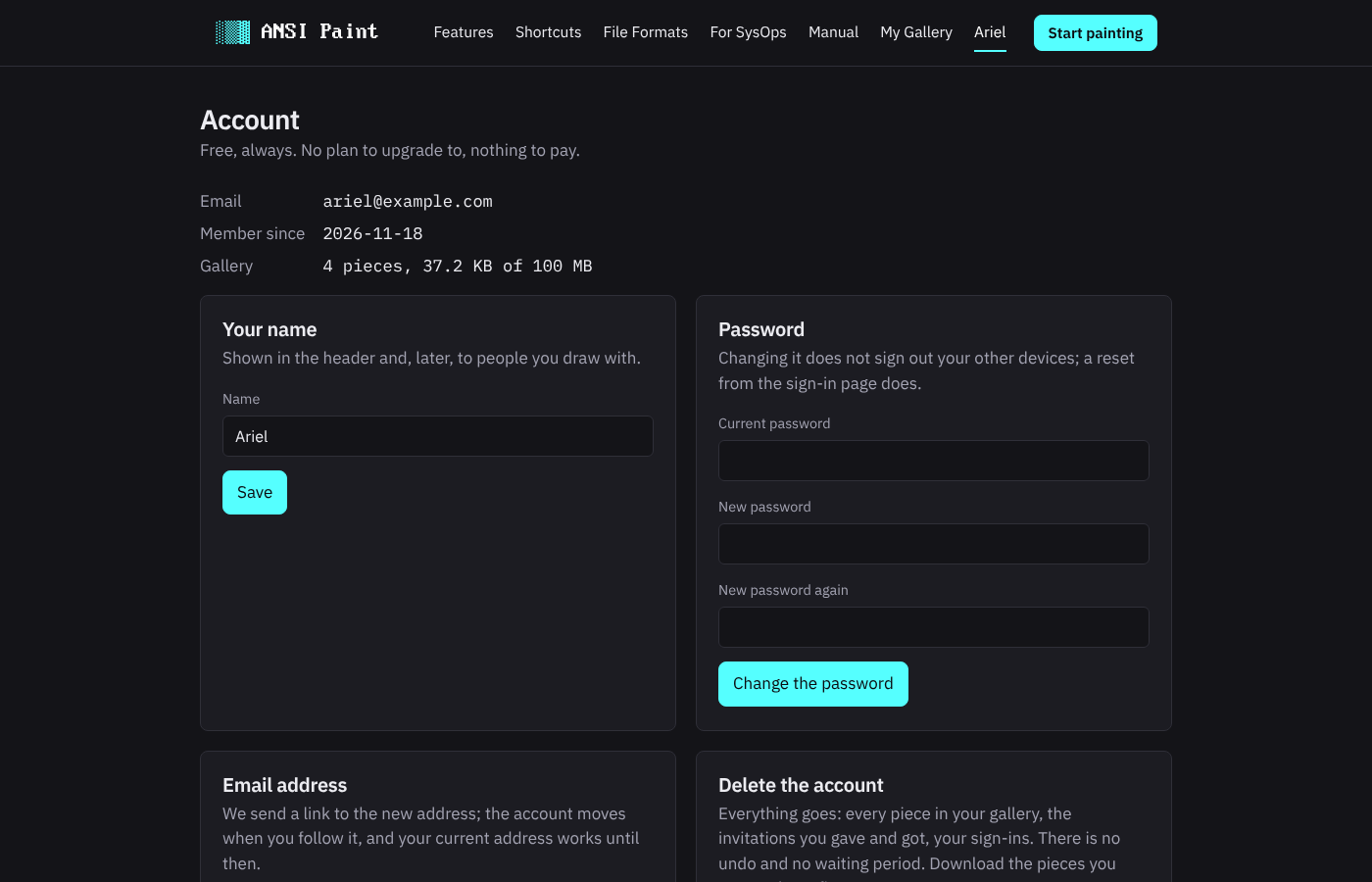
- Your name
- Shown in the header, on your gallery, and to the people you draw with, next to your cursor. Up to 40 characters. Leave it empty and your address stands in for it.
- Password
- The current one, then the new one twice. Changing it does not sign out your other devices; a reset from the sign-in page does.
- Email address
- Type the new address and your password. A link goes to the new address, and the account moves to it when you follow the link, which works for an hour. Until then the current address keeps working, a note goes to it so you know, and Cancel withdraws the request.
- Delete the account
- Your password and your address, typed out. Everything goes: every piece in your gallery, the invitations you gave, the ones you got, and your sign-ins. There is no undo and no waiting period, so download the pieces you want to keep first.
Keys
The keys work while no text field has the focus. Click the canvas once if they seem dead. On a Mac the function keys need Fn held down, and F10 is Firefox's menu key, so the set tabs in the Characters panel are clickable too. The Shortcuts page has the same list on its own.
| Key | Tool |
|---|---|
| P | Pencil |
| B | Half-block brush |
| D | Shade brush |
| T | Text |
| O | Big font |
| L | Line |
| R | Rectangle |
| F | Fill |
| C | Recolor |
| I | Eyedropper |
| S | Select |
| Right button | Eyedropper on most tools; erase with the half-block brush, step back with the shade brush, put a lifted block back |
| Key | Action |
|---|---|
| X | Swap ink and paper |
| [ and ] | Step the ink |
| { and } | Step the paper |
| F1 to F10 | Choose a character set |
| 1 to 9, 0 | Pick a character from the set |
| Tab | Open or close the picker |
| Right-click a slot | Put the brush character in that F10 slot |
| Key | Action |
|---|---|
| Ctrl+Z | Undo |
| Ctrl+Y, Ctrl+Shift+Z | Redo |
| Ctrl+S | Save to your gallery |
| Ctrl+O | Open a file |
| Esc | Close a menu, the picker or a dialog; drop a shape being dragged; clear the selection |
| Key | Action |
|---|---|
| Ctrl and the wheel | Zoom around the pointer |
| Ctrl++, Ctrl+- | Zoom in, zoom out |
| Ctrl+0 | Zoom to 100 percent |
| The wheel | Scroll |
| Key | Action |
|---|---|
| , and . | The frame before, the frame after; the Text tool types them |
| PageUp, PageDown | The frame before, the frame after, in every tool |
| Ctrl+Enter | Play the movie, or stop it |
| Esc | Stop the movie; stop a GIF being made |
| Left, Right, Home, End | Walk the strip of frames while it has the focus |
| Key | Action |
|---|---|
| Arrow keys | Move the caret, or nudge a lifted block |
| Shift and an arrow | Nudge by 5 |
| Enter | Next line for the caret; place a lifted block |
| Backspace | Step the caret back; blank the selection |
| Del | Blank the selection |
| Esc | Put the caret away; put a lifted block back |
Limits
| What | Limit |
|---|---|
| Canvas | 1 to 1000 columns, 1 to 10000 rows |
| Undo | 100 steps |
| A movie | One screen, 80 by 25 at most; 1000 frames |
| A frame's hold | 60 seconds |
| One piece in the gallery | 4 MB as a .ans |
| One account | 100 MB and 1000 pieces |
| A piece's name | 32 characters: lowercase letters, digits, dashes, underscores |
| SAUCE | Title 35, author 20, group 20, comments 255 lines of 64 (254 in a movie) |
| A picture for the converter | 8 MB; read at up to 2048 pixels a side |
| Invitations to one piece | 20 |
| People in one room | 16 |
| A piece in a room | 1,000,000 cells |
| Rooms one account can be in at once | 8 |
| Connections of one account to one room | 3 |
| A password | 8 characters or more |
| Your name | 40 characters |
| The confirmation link | 48 hours |
| A reset link, an address-change link | 60 minutes |
When something goes wrong
- No confirmation mail
- Look in the spam folder. Then use Send the link again on the sign-in page: it sends the one live link again, for as long as that link lives (48 hours). Once it has expired, sign up again with the same address and a new link comes. The link opens the account with the password typed when the address first signed up; if that was not you, Forgot your password fixes it.
- "The form has expired"
- The page sat open for a long while. Reload it and send the form again.
- The keys do nothing
- A text field has the focus. Click the canvas once.
- "Not saved: too big for this browser's storage"
- The browser refused to keep the draft, which happens with a huge painted piece or in a private window. The draft is the safety net for a piece that was never saved, and for a gallery piece while the gallery cannot take it (you are signed out, or a save was turned down). Save to the gallery when you can, or download the .ans.
- A .bin opened at the wrong width
- Open it again and answer the width question with the right number. The editor proposes 160, which most scene files are; some are 80.
- "This piece was changed elsewhere"
- Another tab, or the room, saved a newer copy of the piece, and the editor does not write over it. Type another name and Save to keep this tab's copy as a new piece. A reload does not show the newer copy yet: it offers this tab's work back as a draft, with the same choice, where Discard loads the gallery's copy and another name and Save keeps this one. An invitee cannot rename: download the .ans to keep the work, or reload for the room's copy.
- "That piece is not in your gallery"
- The link named a piece that was deleted, or one whose invitation was taken back. The editor opens blank; Save makes a new piece.
- "Drawing together is not set up on this server"
- The room server is not configured. The editor works alone and saves to the gallery; the sysop's notes cover the setup.
- The chip says Reconnecting
- The room is out of reach for the moment. Keep drawing; your changes go out when it is back. After five tries the editor saves on its own, and if someone was still drawing in the room, the last save wins; reload to try the room again.
- + Frame is refused
- The status bar says why. A canvas larger than 80 by 25 has to be made smaller in Size first. On a shared piece, take back the invitations in the Draw together panel and reload the page: a movie is drawn alone.
- "the last cell of the screen stays blank in a movie"
- A movie never draws its bottom right cell, so that no terminal scrolls. The last cell of the screen has the reason.
- A hold or a speed is refused
- The change would carry the file past the 4 MB the gallery takes for one piece, and the status bar gives both sizes. Shorter holds or a lower speed keep it under.
- A board shows only a movie's last frame
- The caller has no speed limit, so the whole file arrived at once. On ATDT a key pressed while the movie plays does the same: any key skips to the end. Or the file went through the board's own editor, which keeps one frame. See Putting a movie on a board.
- "A movie's draft in this browser could not be read"
- The draft is kept as it is, and nothing is written over it. Download the draft hands you what it holds. Discard the draft clears it away.
- "This piece is shared, and a movie is drawn alone"
- The piece got invitations in another tab while this one made it a movie, and nothing was saved over it. Type another name and Save.
- "This piece is a movie now, and a movie is drawn alone"
- The owner made the shared piece a movie, and its room closed. This tab's copy is a still and isn't saved over the movie: download the .ans to keep it. The saved line reads "Not saved: this copy stays in this tab" for as long as that holds, and it reads the same when a room is full and turns this tab away.
- The characters look wrong
- The VGA font did not load, and the browser's own monospace font stands in. Reload the page; if a content blocker holds the font back, allow it for this site.
- "ANSI Paint is not configured on this server yet"
- The sysop's configuration file is missing or in the wrong place. The page says which; the deploy notes in the repository say what to do.
- Something else
- Contact. Say what you did, what you saw, and which browser you use.
ANSI art in short
A .ans file is text. Its characters come from CP437, the set of 256 that IBM put in the first PC: the letters and digits, accented letters, Greek letters, box-drawing lines in single and double weight, the shade blocks, the half blocks and the full block. The colors come from escape sequences in the text, the same codes that set colors on a terminal, which is where the name ANSI comes from. A board sends the file to a caller's terminal as it is, and the terminal draws it.
There are 16 colors, the VGA palette: eight dark ones and their bright twins. The original hardware let a character be any of the 16 but gave the background only the eight dark ones; the bit that would have made a bright background made the cell blink instead. iCE colors, named for the group that made it popular, is the convention that uses that bit for a bright background and gives up blinking. A flag in the SAUCE record says which rule a file wants.
SAUCE is the record at the end of the file: the title, the author, the group, the date, the size, the flags and the font. Viewers and boards read it; a .ans without one still shows, it just says less about itself.
A BBS screen is 80 columns by 25 rows. Pieces taller than that scroll, and the scene calls them scrollers. The editor's rulers mark row 25 for that reason, and the 80 by 25 preset is one screen exactly.
An ANSI movie is the same kind of file put to another use: it keeps moving the cursor back and drawing again, and the caller's connection sets the pace. Movies has the rest.
ANSI Paint keeps all of this byte for byte. What you draw is what a board shows.